
The IRISPen Air 8 uses the apps built into the pen to perform the scanning. On the Air model there is additional software for Window, Mac, Android and iOS available on this page.
It allows you to scan directly to the IRISPen app which can be downloaded on this page.
IRISPen 8 Product Support Page
https://www.irislink.com/support/irispen-8
How to Connect and Scan
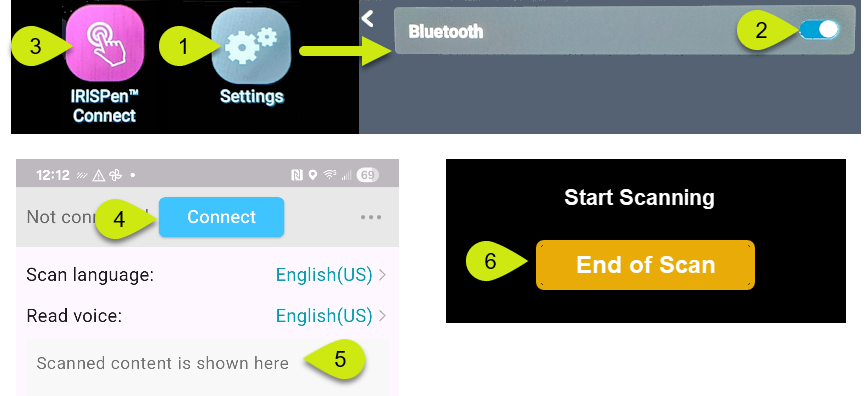
The Bluetooth on your device needs to be turned but you will not pair to it. The connection is made between the pen and app and not the computer or mobile device.
- On the pen, go to IRISPen™ settings
- Select the Bluetooth and slice the switch to ON. Do not select any items below as that is for audio connections.
- Select and open the IRISPen™ Connect app on your pen to perform the pairing.
1. Provides instructions.
2. Starts the Bluetooth process to connect to the app. - In the Windows, Macintosh or Mobile app click the Connect button.
- Swipe the pen across your text to convert to it in the Pen App.
- When done scanning tap the end of scan on the pens screen to exit.
Typical User Interface for the app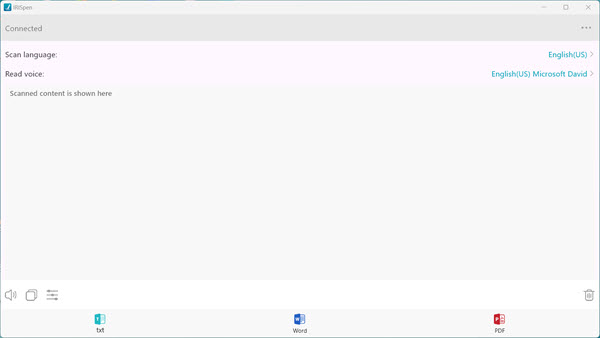
Connecting Audio Through Bluetooth
- Turn on your Bluetooth headphones or headset.
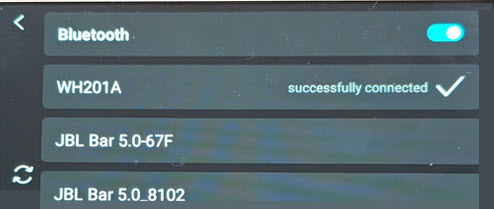
- On the pen, go to Settings → Bluetooth and turn Bluetooth ON.
- Your Bluetooth headset will appear in the list.
- Tap it to connect.
- When using DYS Text‑to‑Speech, the text will be read aloud through the headset.
- When using the DYS Text to Speech it will be read aloud in the head set.




Casey King
Comments