
The download for this product contains this software.
- Readiris PDF 23- The purpose of the Readiris program is to convert a scanned or preexisting image/PDF into a Word, Excel or searchable PDF document depending on the nature of the document and your goal for it.
- Virtual Scanner Link (VSL) – Installs the scanner driver and enables Wifi scanning on a computer.
Download the IRIS Software Installer
- Click on the link below to download the IRIS Software Installer.
http://www.irislink.com/support/iriscananywhere6 - Start the software and agree to the License agreement and Privacy Policy
- Plug your scanner into the computer and click Next...
- In a moment it should detect your scanner and after clicking Next display the available software.
- Check boxes in Gray are mandatory.
- Click "Install" and the software will download and install automatically.
Activation of the Readiris PDF 23 software.
- Plug your scanner into the computer.
- After the installation start the Readiris PDF 23 software and it will ask to be activated.
- Click on "I want to activate with my I.R.I.S. scanner."
- This message will appear and in a moment the software will detect the scanner and auto activate.
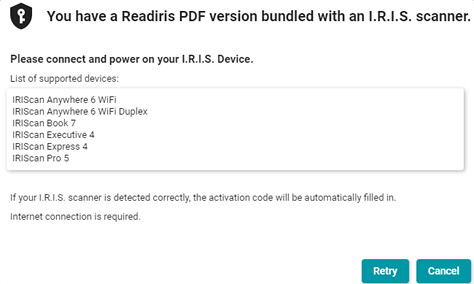
Readiris PDF 23
- In Readiris click the down arrow to the right of "From Scanner" and select the model you have.
- Then click on the “From Scanner” button to bring in the scan.
- Note the Append | Slide control.
- Append means that each scan will accumulate before you process to a single output document.
- New means that each scan will open in a new tab and be processed separately.
- Click the format you want to process to in the Quick Convert section on the Home tab to process to an output file.
- For Advanced options go to the Convert tab and click the format and then set options in the right panel that appears.

How to connect with Wifi with the Virtual Scanner Link software.
This program is loaded as a Login item and if minimized appears on the right side of the Dock. Otherwise start it from the Applications folder.

- To use disconnect the USB cable from the scanner.
- Turn on the scanner and slide the wifi switch on the end of the scanner to on.
- The light will blink blue until connected.
- Connect to the scanner in the Mac wifi dialog. The name is IRIScan with the 6-digit number corresponding to the Mac address printed on the bottom the scanner, along with the password.
- Password: 12345678
- Start or click on the VLS icon and click refresh.
- When the scanner appears click on Connect.
- If there is an issue with this see this article, https://support.irislink.com/en-us/article/1174




Casey King
Comments